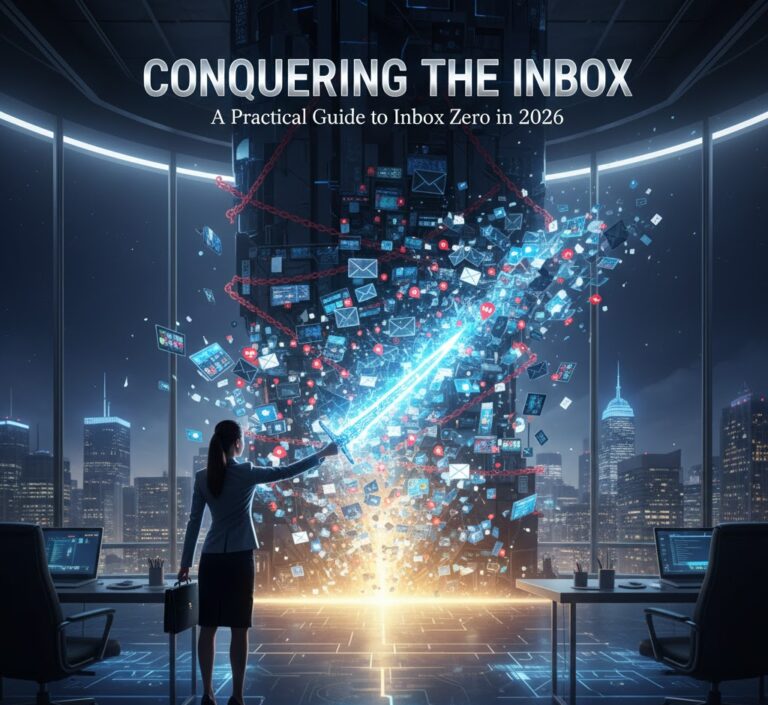

A Practical Guide to Inbox Zero and Digital Organization in 2026
Ever feel like you’re drowning in a sea of emails, notifications, and digital clutter? You’re not alone. In today’s hyper-connected world, information overload is a serious problem. It steals your time, spikes your stress levels, and makes it incredibly difficult to focus on what truly matters. I’ve been there – buried under a mountain of unread emails, lost files, and a to-do list that seemed to grow faster than I could check items off. Over the past few years, I’ve developed a system that helps me manage the chaos and achieve “Inbox Zero” regularly. This guide will walk you through that system, providing practical steps and tools you can use to regain control of your digital life in 2026 and beyond.
The Problem: Why Is Information Overload Such a Beast?
Let’s be real. We’re bombarded with information every single day. From work emails and social media updates to newsletters and personal messages, it’s a never-ending stream. This constant influx can lead to:
- Reduced Productivity: Spending hours sorting through emails or searching for files eats into your valuable work time.
- Increased Stress: The feeling of being behind, of having too much to do, can cause significant stress and anxiety.
- Poor Decision-Making: When your brain is overloaded, it’s harder to think clearly and make good decisions.
- Missed Opportunities: Important emails, deadlines, or information can get lost in the noise.
I learned the hard way that ignoring the problem doesn’t make it go away. It just festers, making everything worse. The good news is, you can fight back! The solution isn’t to eliminate information – that’s impossible. Instead, it’s about developing a system to manage it effectively.
Step 1: Taming Your Inbox – The Inbox Zero Framework
Inbox Zero isn’t about having zero emails *permanently*. It’s about processing your inbox to zero at regular intervals, meaning you’ve dealt with every message. The core principles:
- Process, Don’t React: Don’t just scan and leave emails in your inbox. Act on them immediately.
- One Touch Rule: Deal with each email only once.
- Time Blocking: Dedicate specific times in your day for email processing.
Here’s how to put this into practice:
1.1. The Unsubscribe Sprint
This is where it all begins. Go through your inbox and unsubscribe from *everything* you don’t need or read. Be ruthless. I’m talking about those newsletters you never open, promotional emails, and anything else cluttering up your space. It might take an hour or two, but it’s a game-changer.
I personally use Unroll.me (though be mindful of privacy – there are alternatives), which makes unsubscribing from multiple emails at once very easy. Even if you only save 10 minutes a day from not having to delete emails that are irrelevant, the time saved adds up very quickly.
1.2. The Five D’s of Email Processing
For each email you receive, make a decision using the Five D’s:
- Delete: If it’s junk, get rid of it. Simple.
- Delegate: If someone else needs to handle it, forward it to them.
- Do: If it takes less than 2-3 minutes to handle, do it immediately. Reply, schedule a meeting, etc.
- Defer: If it requires more time, schedule it in your calendar or add it to your to-do list (more on that later).
- Document: If the email contains important information you may need in the future, file it away in a specific folder.
1.3. Time Blocking Your Email
Set aside specific times for processing your inbox. I find it most effective to check email twice a day – once in the morning and once in the afternoon. This prevents you from being constantly distracted by incoming messages. When you’re not actively checking email, turn off notifications. Seriously. It’s a huge productivity boost.
Step 2: Mastering Digital File Organization
A cluttered email inbox is only half the battle. Your computer’s file system can be an even bigger mess. A well-organized digital filing system is essential for finding information quickly and staying productive. Here’s a system that’s worked for me.
2.1. The Folder Hierarchy
Create a logical folder structure that reflects your work and personal life. I use a top-level folder for each major area (Work, Personal, Finances, etc.). Within each, I have subfolders for specific projects, topics, or clients. The key is to keep it simple and intuitive, so you can easily find what you need.
Here’s a basic example:
- Work
- Project A
- Project B
- Client X
- Client Y
- Personal
- Travel
- Health
- Hobbies
2.2. Consistent File Naming
Establish a consistent naming convention for all your files. This makes searching much easier. Include the date (YYYY-MM-DD), a brief description, and any relevant keywords.
For example: “2026-02-01 Project A – Draft Proposal”. This lets you quickly sort and find files based on date or topic. Get in the habit of renaming files as soon as you save them. It saves time and headaches later.
2.3. Utilizing Cloud Storage and Search
Use cloud storage services like Google Drive, Dropbox, or OneDrive. They offer automatic backups and make it easy to access your files from anywhere.
Cloud services also have powerful search functions that can quickly locate files, even if you can’t remember the exact name. Trust me, I once spent an hour looking for a client file. The simple search function on Google Drive saved me, by finding a file even when I only remembered a few words. This alone is worth the price of cloud storage.
Step 3: Conquering Your To-Do List
An organized inbox and file system are essential, but you also need a system for managing your tasks. A chaotic to-do list is a recipe for overwhelm. I recommend using a dedicated task management tool, which has helped me tremendously. Here’s my approach:
3.1. Choosing the Right Tool
There are many task management apps out there. Some of the popular ones include Todoist, Asana, Trello, and Microsoft To Do. The best one for you depends on your preferences and needs. I personally use Todoist because it’s simple, intuitive, and integrates well with my other tools. Regardless of the tool you choose, make sure it has the following features:
- Prioritization: The ability to assign priority levels to tasks.
- Due Dates: Setting deadlines is critical for time management.
- Project Organization: Grouping tasks into projects helps you stay focused.
- Reminders: Notifications to remind you of upcoming deadlines.
3.2. Capturing Your Tasks
Get everything out of your head and into your task management tool. I use a “capture method” – any time a new task pops into my mind, I add it to my inbox. Capture everything. Don’t worry about prioritizing or organizing yet. That comes later. If you use a method like GTD (Getting Things Done), this would be your “inbox” phase.
3.3. Organizing and Prioritizing
Regularly review your task list and organize it into projects. Then, prioritize tasks based on their importance and urgency. I use the Eisenhower Matrix (Urgent/Important) to determine which tasks to focus on.
This is a good time to set realistic deadlines for your tasks. Underestimating how long something will take is a classic mistake.
3.4. Daily Review and Execution
At the beginning of each day, review your task list and choose the most important tasks to focus on. Start with the most challenging or time-consuming tasks first (eat the frog). When you complete a task, mark it as done. At the end of the day, review what you accomplished and plan for tomorrow.
Step 4: Automating and Streamlining Your Workflow
Once you have a solid system in place, it’s time to look for ways to automate and streamline your workflow. Technology offers many tools and tricks to make your life easier.
4.1. Email Automation
Use email filters and rules to automatically sort incoming messages. For example, you can set up a filter to automatically archive newsletters, or forward specific emails to a team member. Most email providers have these features built-in. Some email services like Mailstrom offer advanced filtering and sorting based on AI.
4.2. Utilizing Calendar Integrations
Integrate your calendar with your task management tool. This allows you to schedule tasks in your calendar and get reminders. This also ensures you allocate enough time for specific tasks in your day. This is particularly useful for meetings and deadlines.
4.3. Leveraging Automation Tools
Explore automation tools like Zapier or IFTTT. These tools let you connect different apps and automate tasks between them. For instance, you could set up a Zap to automatically save attachments from Gmail to your Google Drive.
Step 5: Maintaining the System – Consistency is Key
The system is only effective if you stick to it. Here are some tips for staying on track:
- Review and Refine: Regularly review your system and make adjustments as needed. What’s working? What’s not?
- Batch Similar Tasks: Group similar tasks together to minimize context switching. For example, schedule a block of time to respond to emails and another block to make phone calls.
- Take Breaks: Schedule regular breaks to avoid burnout and maintain focus. The Pomodoro Technique (working in 25-minute intervals) can be very effective.
- Stay Flexible: Life happens. Don’t be afraid to adjust your plans when unexpected events come up. The goal is to make the system work for you, not the other way around.
Don’t be afraid to experiment to find what works best for you. What works for one person might not work for another. The key is to find a system that you can stick with consistently. One of the best things you can do to keep yourself accountable is to keep reviewing and refining what you’re doing. What used to work might stop working after a while. Make sure that you regularly assess what you’re doing and tweak as needed.
Common Mistakes to Avoid
Here are some of the most common mistakes people make when trying to conquer information overload:
- Procrastination: Putting off email processing or task completion. Address this by breaking down large tasks into smaller steps.
- Overcomplicating the System: Starting with a system that’s too complex. Keep it simple and adjust as needed.
- Not Setting Clear Priorities: Failing to prioritize tasks leads to wasted time and missed deadlines. Use a system (like the Eisenhower Matrix).
- Ignoring Digital Hygiene: Neglecting to delete unnecessary files or unsubscribe from unwanted emails.
Tools and Resources to Consider
Here are some specific tools and resources I recommend:
- Email Management:
- Gmail: A solid choice for email management, with powerful search and organization features.
- Outlook: Another popular option, especially for those in corporate environments.
- Unroll.me: (with caution) A tool for mass unsubscribing from email lists.
- File Management:
- Google Drive: Cloud storage with excellent search and collaboration features.
- Dropbox: Another popular cloud storage option.
- Microsoft OneDrive: Integrated cloud storage for Microsoft users.
- Task Management:
- Todoist: My personal favorite, simple and effective.
- Asana: A more robust option for team projects.
- Trello: A visual project management tool, great for Kanban boards.
- Automation:
- Zapier: Connects different apps to automate tasks.
- IFTTT: Similar to Zapier, but often simpler to use.
Remember that the right tools are the ones that you actually use consistently. The best tool is the one that best suits your workflow. Don’t feel pressured to use the tools I mention. Instead, the most important thing is to find something that helps you manage information overload effectively.
Staying Ahead in 2026 and Beyond
The digital landscape is constantly evolving. Here’s how to future-proof your system:
- Embrace AI: Explore how AI can help you manage your inbox, prioritize tasks, and summarize information.
- Stay Informed: Keep up-to-date with new tools and techniques for managing information.
- Regularly Review and Adapt: The most important thing. As technology evolves, so should your system.
By consistently applying these principles, you’ll not only conquer information overload but also improve your productivity, reduce stress, and reclaim your time. It’s a journey, not a destination. And as we look beyond, we can see the importance of a clear and organized mind.
Frequently Asked Questions (FAQ)
Here are some of the most common questions I get about managing information overload:
- How long will it take to implement this system? Implementing the initial steps (unsubscribing, setting up your folder structure) can take a few hours. The real time commitment comes in the daily upkeep.
- Is Inbox Zero really achievable? Yes! It takes practice and discipline, but it’s achievable. It’s not about achieving it once but about making it a habit.
- What if I get too many emails to manage? Review your email habits. Are you subscribed to too many newsletters? Do you need to set up better rules and filters?
- What’s the best way to handle urgent emails? Prioritize them immediately. If they require a quick response, do it. If they require more time, schedule it in your calendar.
- How do I deal with distractions from social media and notifications? Turn off notifications! Set aside specific times to check social media and other distracting platforms.
- Is it possible to completely eliminate digital clutter? No, but you can significantly reduce it and maintain control.
- What if I’m already using other tools like a CRM? How do I integrate? The same principles still apply. Focus on organization, prioritization, and automation within your existing workflow.
- How much time should I set aside each day for email? Start with two 30-minute blocks, one in the morning and one in the afternoon. Adjust as needed.
By taking control of your digital life, you can free up your time and energy to focus on the things that truly matter. Now get out there and start decluttering!
Want to go further and learn about all the options that are possible with Complifest? Visit our homepage to find out how to take your organization one step further!